基本命令
按键
- 按
Tab 键可以自动补全命令。
- 大部分情况下,按
Ctrl + C 可以中断当前程序,或者是已输入的字符。
- 大部分情况下,按
Ctrl + D 可以退出登录。
命令结构
| command param1 param2 ...
|
- 一行命令中第一个部分是命令或可执行文件。
- 之后每一个部分为参数,不同的命令有不同的要求。
- 一般来说,
- 后面带一个或多个字母,或者是 -- 后面带一个词,表示选项。这里面的每一个字母或词,表示某个选项设置。如:很多命令用 -h --help 表示输出该命令的帮助信息。
- 参数是区分顺序的,但是大多数情况下,简单的选项可以乱序。
- 命令区分大小写。
- 命令太长时可以输入反斜杠之后回车,一般来说也可以使用缩进来使其美观,如:
```bash
docker run \
--name mysql \
-v /root/mysql:/var/lib/mysql \
-e MYSQL_ROOT_PASSWORD=password \
--restart always \
--network ljl \
--privileged=true \
-p 3306:3306 \
-d \
mysql
| 等价于
```bash
docker run --name mysql -v /root/mysql:/var/lib/mysql -e MYSQL_ROOT_PASSWORD=password --restart always --network ljl --privileged=true -p 3306:3306 -d mysql
|
pwd - 当前工作目录
print working directory
whoami - 当前用户名
ls - 列出文件 / 目录
list
直接列出当前目录下的文件和目录
| apt.tar.gz docker docker-tar jenkins-docker-certs status test
config docker.service jenkins-data mongo_test 'sudo systemctl stop'
|
列出指定目录下的文件和目录
| bin games include lib lib32 lib64 libexec libx32 local sbin share src
|
-a - 列出文件和目录,包括隐藏文件 / 目录
| . .bashrc docker.service mongo_test status .Xauthority
.. .cache docker-tar .mysql_history .sudo_as_admin_successful
apt.tar.gz .config jenkins-data .profile 'sudo systemctl stop'
.bash_history config jenkins-docker-certs .rpmdb test
.bash_logout docker .local .ssh .viminfo
|
-l - 列出文件和目录的具体信息,每个文件 / 目录一行
| total 30880
-rw-r--r-- 1 root root 31578805 Apr 14 14:41 apt.tar.gz
drwxrwxr-x 5 foxconn foxconn 4096 Apr 18 15:19 config
drwxrwxr-x 2 foxconn foxconn 4096 Apr 14 10:56 docker
-rw-r--r-- 1 root root 1759 Apr 14 11:36 docker.service
drwxrwxr-x 2 foxconn foxconn 4096 Apr 15 18:55 docker-tar
drwxrwxrwx 22 root root 4096 Apr 20 17:49 jenkins-data
drwxr-xr-x 2 root root 4096 Apr 15 18:36 jenkins-docker-certs
drwxr-xr-x 4 root root 4096 Apr 8 17:19 mongo_test
-rw-r--r-- 1 root root 0 Apr 20 16:59 status
-rw-r--r-- 1 root root 7103 Apr 11 15:55 'sudo systemctl stop'
drwxrwxr-x 3 foxconn foxconn 4096 Apr 12 09:52 test
|
各列的含义
- 权限
- 第一个字符表示文件类型(目录
d、文件 -、链接文件 l、块设备 b、串行端口设备 c)
- 第 2\~4、5\~7、8\~10 个字符分别表示拥有者、用户组、其他用户拥有的权限,顺序为
rwx,分别为读取、写入、执行。如果没有对应权限,则空位为 -
- 链接个数:有多少文件名连接到此节点(inode)
- 拥有者用户名
- 用户组名
- 文件容量,默认为字节
- 默认为修改日期时间
- 文件名
列出文件和目录的具体信息,包括隐藏文件 / 目录,每个文件 / 目录一行
| total 30944
drwxr-xr-x 14 foxconn foxconn 4096 Apr 21 10:34 .
drwxr-xr-x 4 root root 4096 Apr 13 15:05 ..
-rw-r--r-- 1 root root 31578805 Apr 14 14:41 apt.tar.gz
-rw------- 1 foxconn foxconn 5193 Apr 21 09:56 .bash_history
-rw-r--r-- 1 foxconn foxconn 220 Feb 25 2020 .bash_logout
-rw-r--r-- 1 foxconn foxconn 3771 Feb 25 2020 .bashrc
drwx------ 2 foxconn foxconn 4096 Apr 1 18:08 .cache
drwx------ 3 foxconn foxconn 4096 Apr 12 09:02 .config
drwxrwxr-x 5 foxconn foxconn 4096 Apr 18 15:19 config
drwxrwxr-x 2 foxconn foxconn 4096 Apr 14 10:56 docker
-rw-r--r-- 1 root root 1759 Apr 14 11:36 docker.service
drwxrwxr-x 2 foxconn foxconn 4096 Apr 15 18:55 docker-tar
drwxrwxrwx 22 root root 4096 Apr 20 17:49 jenkins-data
drwxr-xr-x 2 root root 4096 Apr 15 18:36 jenkins-docker-certs
drwxrwxr-x 3 foxconn foxconn 4096 Apr 21 09:45 .local
drwxr-xr-x 4 root root 4096 Apr 8 17:19 mongo_test
-rw------- 1 foxconn foxconn 18 Apr 12 08:59 .mysql_history
-rw-r--r-- 1 foxconn foxconn 807 Feb 25 2020 .profile
drwxr-xr-x 2 foxconn foxconn 4096 Apr 20 17:53 .rpmdb
drwx------ 2 foxconn foxconn 4096 Apr 18 15:15 .ssh
-rw-r--r-- 1 root root 0 Apr 20 16:59 status
-rw-r--r-- 1 foxconn foxconn 0 Apr 1 18:10 .sudo_as_admin_successful
-rw-r--r-- 1 root root 7103 Apr 11 15:55 'sudo systemctl stop'
drwxrwxr-x 3 foxconn foxconn 4096 Apr 12 09:52 test
-rw------- 1 foxconn foxconn 8080 Apr 15 08:56 .viminfo
-rw------- 1 foxconn foxconn 212 Apr 21 08:58 .Xauthority
|
cd - 转到目录
change directory
转到对应目录:
转到当前用户家目录,可以用其中任意一条:
mkdir - 创建目录
make directory
基本用法
| mkdir dir1
mkdir dir1 dir2 dir3
|
-p - 递归创建目录
| mkdir -p dir1/dir2/dir3/dir4
|
如果路径上的某个目录不存在,则会一并创建。
cp - 复制
copy
将 file 复制到 dir
可以顺便重命名:
将 file_1、file_2... 复制到 dir
这时候最后一个必须是目录。
-i - 若文件已存在,提示是否覆盖
若文件已存在,提示:
| cp: overwrite 'dir/file'?
|
填 y 才会覆盖。
-r - 递归复制
可用于目录的复制操作。
复制时复制属性
-d:若源文件为链接文件的属性,则复制链接文件属性而非文件本身-p:连同文件的属性(权限、用户、时间)一起复制过去,而非使用默认属性(备份常用)--preserve=all:除了 -p 的权限相关参数外,还加入 SELinux 的属性。links、attr 等也复制-a:相当于 -dr --preserve=all
mv - 移动
move
基本操作
可以移动文件。如果源文件和目标文件在同一目录下,则相当于重命名。
| mv file1 file2 file3 dest_path
|
移动多个文件。此时 dest_path 必须为目录。
参数
-i:询问是否覆盖已有文件-u:源文件较新时才会覆盖已有文件-f:强制覆盖已有文件
rm - 删除
remove
基本操作
| rm file
rm file1 file2 file3
|
-i - 删除前询问是否删除
| rm: remove regular file 'file'?
|
填 y 才会删除。
-r - 递归删除
会删除 dir 目录及其下的所有文件。
-f - 强制删除
忽略不存在的文件,不会出现警告信息。
一个非常危险的命令
rmdir - 删除空目录
remove directory
基本用法
如果不是空目录,会报错:
| rmdir: failed to remove 'dir': Directory not empty
|
-p - 递归删除
连同上层空目录一并删除。
| rmdir -p dir1/dir2/dir3/dir
|
cat - 查看文件
concatenate
基本操作
-n - 打印行号
| ding@ding-server:~$ cat -n file
1 # ~/.profile: executed by the command interpreter for login shells.
2 # This file is not read by bash(1), if ~/.bash_profile or ~/.bash_login
3 # exists.
4 # see /usr/share/doc/bash/examples/startup-files for examples.
5 # the files are located in the bash-doc package.
6
7 # the default umask is set in /etc/profile; for setting the umask
8 # for ssh logins, install and configure the libpam-umask package.
9 #umask 022
10
11 # if running bash
12 if [ -n "$BASH_VERSION" ]; then
13 # include .bashrc if it exists
14 if [ -f "$HOME/.bashrc" ]; then
15 . "$HOME/.bashrc"
16 fi
17 fi
18
19 # set PATH so it includes user's private bin if it exists
20 if [ -d "$HOME/bin" ] ; then
21 PATH="$HOME/bin:$PATH"
22 fi
|
head - 显示开始几行
| # 显示前 10 行
head file
# 显示前 20 行
head -n 20 file
# 后面 100 行不显示,显示剩余部分
head -n -100 file
|
tail - 显示后面几行
基本
| # 显示后 10 行
tail file
# 显示后 20 行
tail -n 20 file
# 前面 100 行不显示,显示剩余部分
tail -n -100 file
|
-f - 持续刷新显示后面所接文件内容
按 Ctrl + C 结束。
sudo - 临时使用 root 权限执行命令
| [sudo] password for ding:
|
需要输入自己的密码。
可以使用该命令的用户需由管理员配置好。
su - 切换用户
| # 切换到指定用户 username
su username
# 切换到 root 的话可以省略用户名
su
# 以上切换用户后,目录为之前的目录
# 切换用户的同时切换到对应用户 username 的家目录
su - username
|
切换时需要输入要切换用户的密码。如未设置密码,则无法登录
在不知道 root 用户的密码的情况下,切换到 root(前提是能够运行 sudo):
管道初步
查看文件中带特定文本的行
| # ~/.profile: executed by the command interpreter for login shells.
# This file is not read by bash(1), if ~/.bash_profile or ~/.bash_login
# exists.
# see /usr/share/doc/bash/examples/startup-files for examples.
# the files are located in the bash-doc package.
# the default umask is set in /etc/profile; for setting the umask
# for ssh logins, install and configure the libpam-umask package.
#umask 022
# if running bash
# include .bashrc if it exists
# set PATH so it includes user's private bin if it exists
# set PATH so it includes user's private bin if it exists
|
使用 sudo 时自动输入密码(可以用于脚本)
| echo "password" | sudo -S 命令
|
查看文档
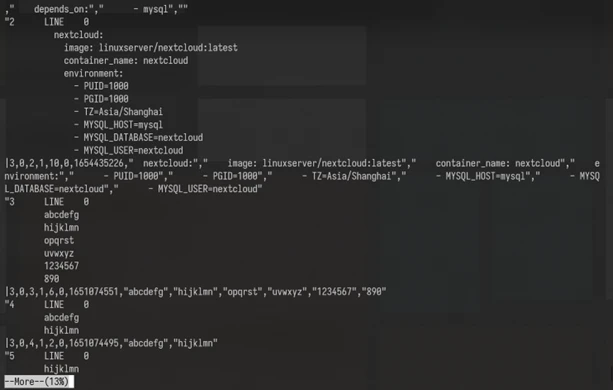
more - 查看长文件
| more 文件
# 也可使用管道
其他命令 | more
|
- 按 回车 向下移一行
- 按 空格 向下移一页
- 移到结尾则终止
- 不能回看
- 按 Q 或 Ctrl + C 可中途退出
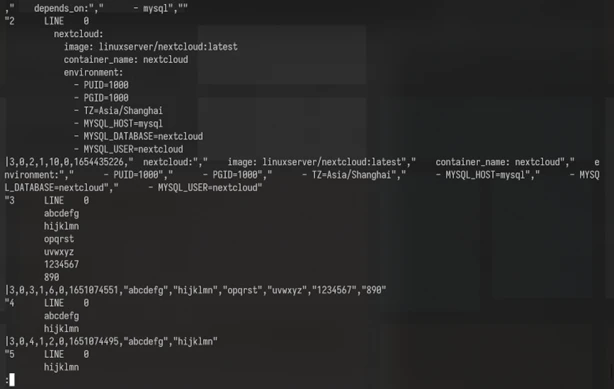
less - 查看长文件,但功能更多
| less 文件
# 也可使用管道
其他命令 | less
|
- 可回看
- 按 回车 下翻一行
- 按 空格 或 Page Down 下翻一页,按 Page Up 上翻一页
- 按 Home 或 G 到首行,按 End 或 Shift + G 到末行
- 按 方向键 也可移动
- 输入 /字符串 回车可向下查找,输入 ?字符串 回车可向上查找;之后按 N 可继续向下查找,按 Shift + N 可继续向上查找
- 按 Q 可中途退出
- 按 H 获得帮助
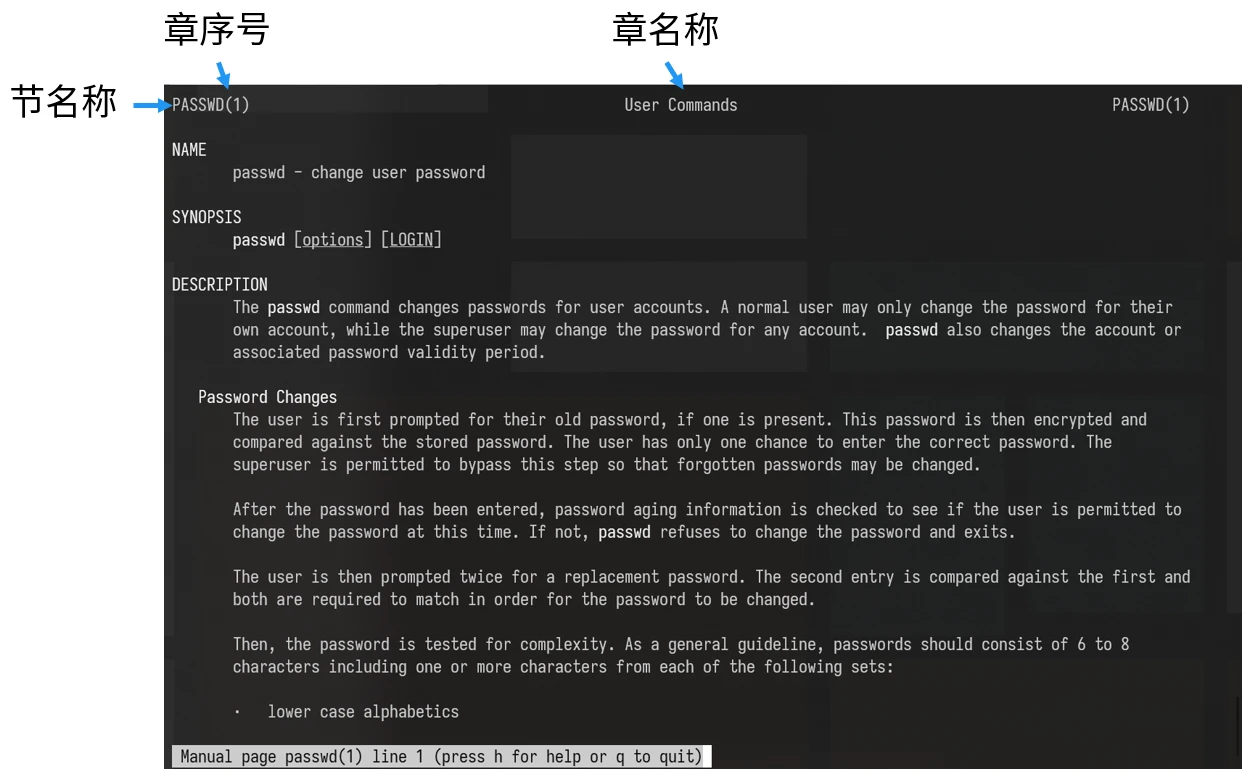
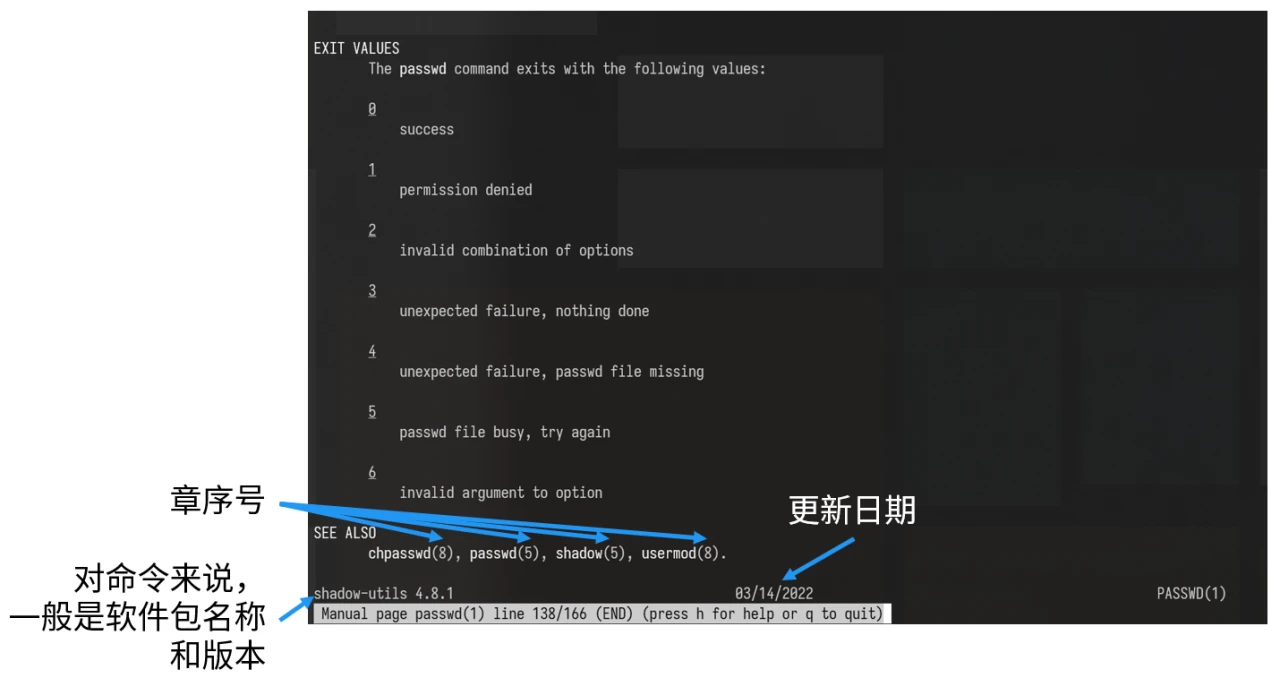
man - 查看 Linux 文档
manual
查看文档(实际上调用了 less 的功能):
界面演示
Linux 手册章节
- 用户在 Shell 环境中可操作的命令或可执行文件
- 系统内核可调用的函数与工具等
- 一些常用的函数与库,大部分为 C 的函数库(
libc)
- 设备文件的说明,通常在
/dev 下的文件
- 配置文件或某些文件的格式
- 游戏
- 惯例与协议等,如 Linux 文件系统、网络协议、ASCII 代码等
- 系统管理员可用的管理命令
- 与内核相关的文件
查询与按章节查看
某关键字在多个章节存在,则默认取序号最小的那个。
| # 精确查询关键词在哪些章节存在
man -f 关键词
# 查看文档时定义章节序号
man 序号 关键词
# 模糊查询
man -k 关键词的一部分
|
其他的文档查看方式
- 使用
info:
bash
  info 关键词
- tldr - 通过一些例子来提供简单的文档
- 在网上查找
参考资料
- 鸟哥的Linux私房菜. 基础学习篇 / 鸟哥著 ; Linux 中国繁转简. -- 4版. -- 北京 : 人民邮电出版社, 2018.3; ISBN 978-7-115-47258-8
- Linux就该这么学 / 刘遄著. -- 北京 : 人民邮电出版社, 2017.11; ISBN 978-7-115-47031-7
- Linux 教程 | 菜鸟教程